> For the complete documentation index, see [llms.txt](https://support.limy.ai/llms.txt). Markdown versions of documentation pages are available by appending `.md` to page URLs; this page is available as [Markdown](https://support.limy.ai/intelligence/prompts-overview/modifying-prompts.md).
# Modifying Prompts
This article explains how to modify prompts in your Limy account.
Modify your prompts when the questions Limy tracks no longer reflect your business, audience, or priorities. You can edit existing prompts or remove ones that are no longer relevant.
### How to Modift Prompts
{% stepper %}
{% step %}
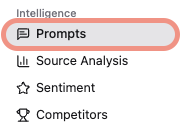
#### Go to **Intelligence → Prompts**.
{% endstep %}
{% step %}
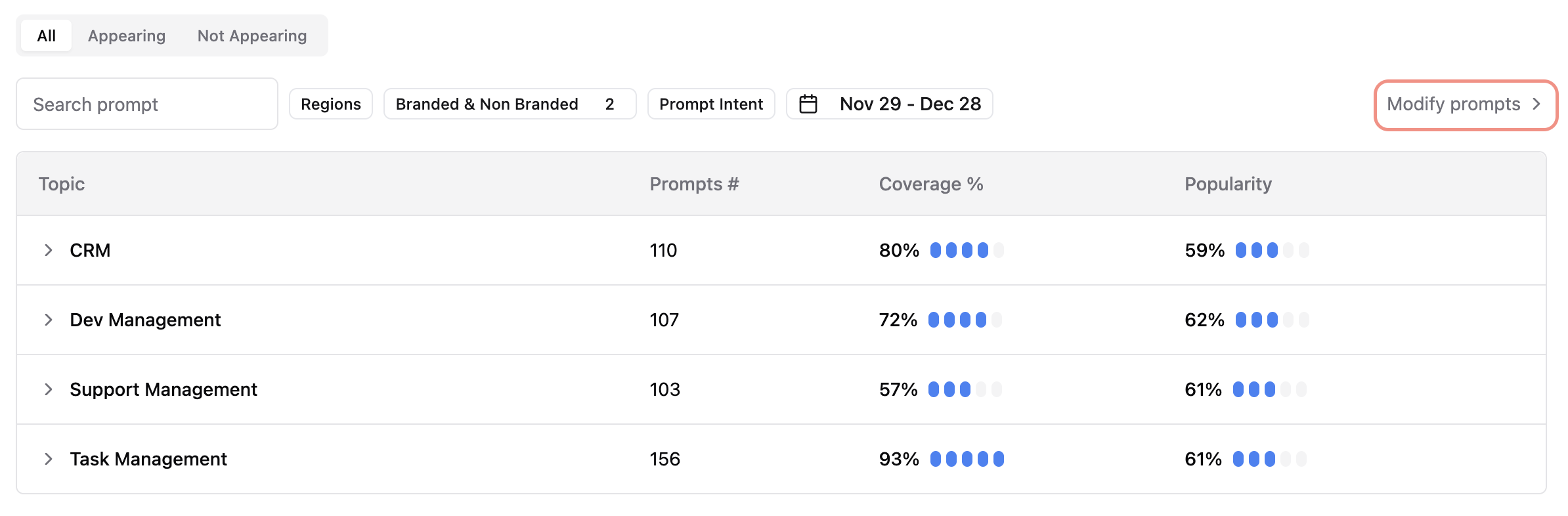
#### Click on **Modify Prompts in the upper-right corner**
{% endstep %}
{% step %}
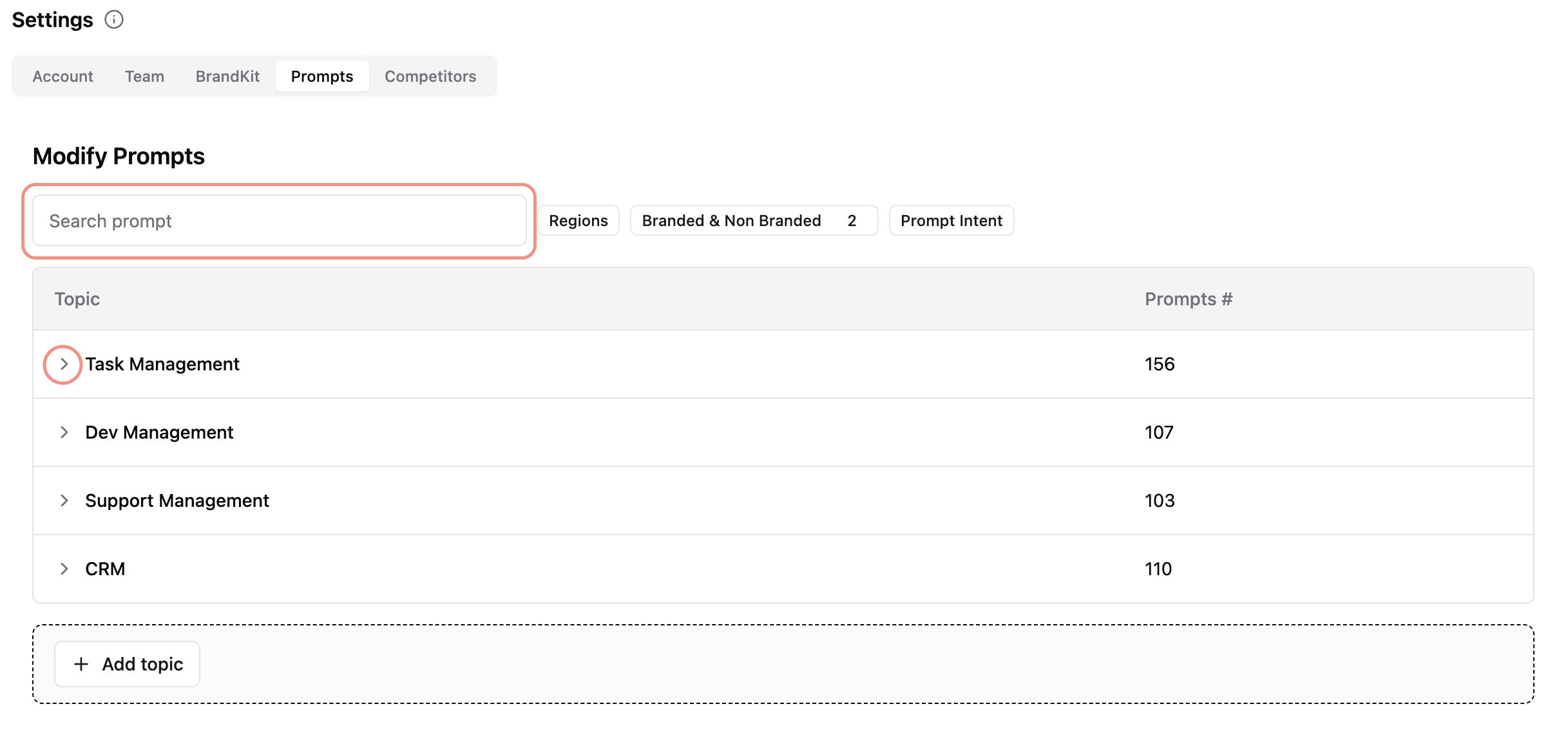
#### Search for a specific prompt or expand a topic
{% endstep %}
{% step %}
#### Select the edit icon to update a prompt or the trash icon to remove it
{% endstep %}
{% step %}
#### Click Save all changes
{% endstep %}
{% endstepper %}
{% hint style="warning" %}
**Best practice:** Keep your prompt set stable when measuring performance over time. Adding, editing, or removing prompts can affect historical comparisons. When your prompt limit allows, add new prompts instead of replacing existing ones.
{% endhint %}
### FAQs
What are prompts?
A prompt represents a question a user might ask an AI system when researching a topic, product, or brand in your category.
What’s the difference between branded and non-branded prompts?
Branded prompts explicitly mention your brand, while non-branded prompts focus on category or problem-based queries where your brand may or may not appear.
Can I add prompts?
Yes. See the **Adding Prompts** page for instructions.
Should I add new prompts or replace existing ones?
Add new prompts when there is room in your account’s prompt quota. Replacing or removing existing prompts can disrupt historical comparisons, so Limy recommends keeping your prompt set stable when measuring performance over time.
***
### Relevant Content
{% content-ref url="/pages/XuGOIwFRmgZPG84YMF0v" %}
[Adding Prompts](/intelligence/prompts-overview/adding-prompts.md)
{% endcontent-ref %}
{% content-ref url="/pages/6kAhYKOlGBTuwcBqHfMk" %}
[Prompts Overview](/intelligence/prompts-overview.md)
{% endcontent-ref %}
{% content-ref url="/pages/rhIt0brSQ0hkz06ZZFn1" %}
[Prompt Deep Analysis](/intelligence/prompts-overview/prompt-deep-analysis.md)
{% endcontent-ref %}
{% content-ref url="/pages/LoiAA6N4BPheGuTBYuCK" %}
[Dashboard Overview](/dashboard/dashboard-overview.md)
{% endcontent-ref %}
{% content-ref url="/pages/5MMZ2BXUk6D9mEVfmg0g" %}
[How Limy Generates Prompts](/intelligence/how-limy-generates-prompts.md)
{% endcontent-ref %}
Still have questions? We’re here to help. Contact us at **** - we’d be happy to assist.