> For the complete documentation index, see [llms.txt](https://support.limy.ai/llms.txt). Markdown versions of documentation pages are available by appending `.md` to page URLs; this page is available as [Markdown](https://support.limy.ai/settings/users-and-roles.md).
# Users & Roles
This article explains how to add users, assign roles, and manage access within your Limy workspace.
The **Users** section in Settings allows you to manage who has access to your Limy workspace and what level of permissions each team member has.
This is where you invite new users, assign roles, and maintain control over who can manage configuration, and strategic settings. Proper user management ensures that Limy remains secure while enabling the right team members to collaborate effectively.
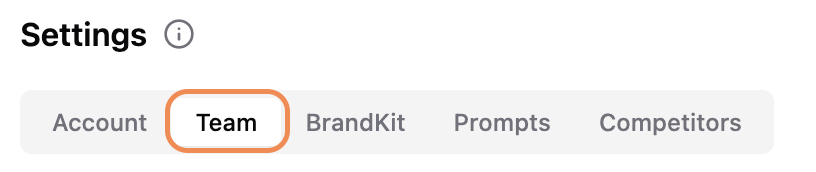
\[SCREENSHOT — Settings > Team overview]
### What You Can Do in User Settings
From the **Team** tab in Settings, you can:
* Add new users to your Limy workspace
* Assign or update user roles
* View when users joined the workspace
* Control who has administrative access
This section is typically managed by **Admins** or workspace owners.
***
### How to Access User Settings
{% stepper %}
{% step %}
### Log in to your Limy account
{% endstep %}
{% step %}
### Navigate to **Settings**
{% endstep %}
{% step %}
### Select **Team**
{% endstep %}
{% endstepper %}
You can user by clicking on 'Add User' on the right side.
To edit your existing user's permission, click on the three dots and 'change to \[..]'.
To remove a user, click on the three dots and 'Remove User'
### Non-admin users
Non-admin users can:
* View dashboards and insights
* Review prompts, competitors, and sentiment
* Work with recommendations (depending on configuration)
Role permissions help ensure that sensitive settings are only accessible to the appropriate users.
### FAQs
Who can manage users?
Only users with **Admin** permissions can add, remove, or update users.
Can I have multiple admins?
Yes. You can assign Admin access to multiple users if needed.
Can I restrict access to specific features?
Yes. Admin will have access to every feature and action on the platform, whilst member will only be able to view and apply filters.
***
### Related Content
{% content-ref url="/pages/eBAk0AYjsxz1px7mFaPQ" %}
[Adding New Users](/settings/users-and-roles/adding-new-users.md)
{% endcontent-ref %}
{% content-ref url="/pages/pJKvZFl4bbD5L2UbEizu" %}
[Manage Users](/settings/users-and-roles/manage-users.md)
{% endcontent-ref %}
{% content-ref url="/pages/cXcriWc6pg8rjaM8BICp" %}
[Filters](/general/filters.md)
{% endcontent-ref %}